
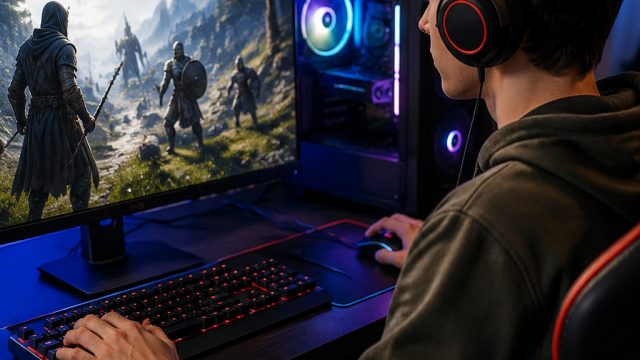
The gaming landscape is evolving, and now is the perfect time to explore the vibrant world of online multiplayer and esports games. Whether you're a seasoned gamer or just starting, knowing how to download and install your favorite games can make all the difference. This guide will walk you through everything you need to know about downloading multiplayer games, from system requirements to installation steps.
Overview of Multiplayer Games
Multiplayer games allow players from around the globe to connect and compete or cooperate in real-time. This interactive mode has become increasingly popular, with various titles catering to different interests—from battle royales like Fortnite to cooperative adventures like Among Us. Engaging in multiplayer gaming offers a unique social experience, making it a vital aspect of modern gaming culture.
Platform Availability
Multiplayer games are accessible across numerous platforms, making them convenient for all types of gamers. Here are the main platforms where you can find your favorite games:
- PC: Platforms like Steam, Epic Games Store, and GOG host a variety of multiplayer titles.
- Consoles: PlayStation, Xbox, and Nintendo Switch offer multiplayer experiences, available through their respective stores: PlayStation Store, Xbox Store, and Nintendo eShop.
- Mobile: The mobile gaming arena is booming. You can find multiplayer games on Google Play and the Apple App Store.
System Requirements
Before diving into your chosen game, it’s crucial to ensure your device meets the necessary system requirements. These specifications can vary significantly between games, but here are common requirements to keep in mind:
For PC Games:
- Operating System: Windows 10/11, macOS, or a compatible Linux distribution.
- Processor: At least a dual-core CPU (Intel i5 or AMD equivalent).
- Memory: A minimum of 8 GB RAM, though many newer games may require more.
- Graphics: A dedicated graphics card, such as NVIDIA GTX 970 or AMD RX 580, is often necessary.
- Storage: Available hard disk space can vary widely; ensure you have ample room for the game and any updates.
For Console Games:
- PlayStation: Ensure your PlayStation 4 or 5 is updated and has enough free space.
- Xbox: Xbox One and Series X/S users should verify system updates and available storage.
- Nintendo Switch: Check for required updates and available space on your console.
For Mobile Games:
- Android: Typically Android 5.0 (Lollipop) or higher is required.
- iOS: Most games require iOS 12.0 or later for optimal performance.
How to Download
Ready to jump into the action? Follow these simple steps to download your favorite multiplayer games:
PC Download Steps:
- Visit your chosen digital storefront, such as Steam or Epic Games Store.
- Create or log into your account.
- Search for the game you wish to download.
- Click on the game's page, and select the "Install" or "Download" button.
- Follow any on-screen prompts to complete the download and installation process.
Console Download Steps:
- Open the respective store on your console (PlayStation Store, Xbox Store, or Nintendo eShop).
- Sign into your account if needed.
- Search for the game title.
- Select the game, then choose "Download" or "Purchase" to start the installation.
Mobile Download Steps:
- Open the Google Play Store or Apple App Store on your device.
- Type the game’s name into the search bar.
- Select the game from the search results.
- Tap "Install" (or "Get" for Apple devices) to begin downloading.
Conclusion
Downloading multiplayer games opens up a universe of exciting experiences and competitive challenges. With a clear understanding of the platforms, system requirements, and steps to install these games, you are well on your way to creating unforgettable gaming memories. Dive in, explore different genres, and connect with players worldwide. The adventure awaits!